Single Sign-On with Google Workspace
This guide connects Google Workspace to your Ipregistry organization. In the Google Admin console, an application you add yourself is a SAML application: that is the way described first, and the simpler one. Google has no OpenID Connect application in the Admin console. OpenID Connect goes through a client created in Google Cloud, described further down.
Read the overview first for what single sign-on does, who can set it up and how domains work. You need to be the owner of the organization on Ipregistry and an administrator of Google Workspace.
With SAML 2.0
1. Create the connection on Ipregistry
- In the dashboard, click your organization at the bottom left and choose Settings in the menu that opens. Click Manage SSO, then Add a connection.
- Enter a Name, for example
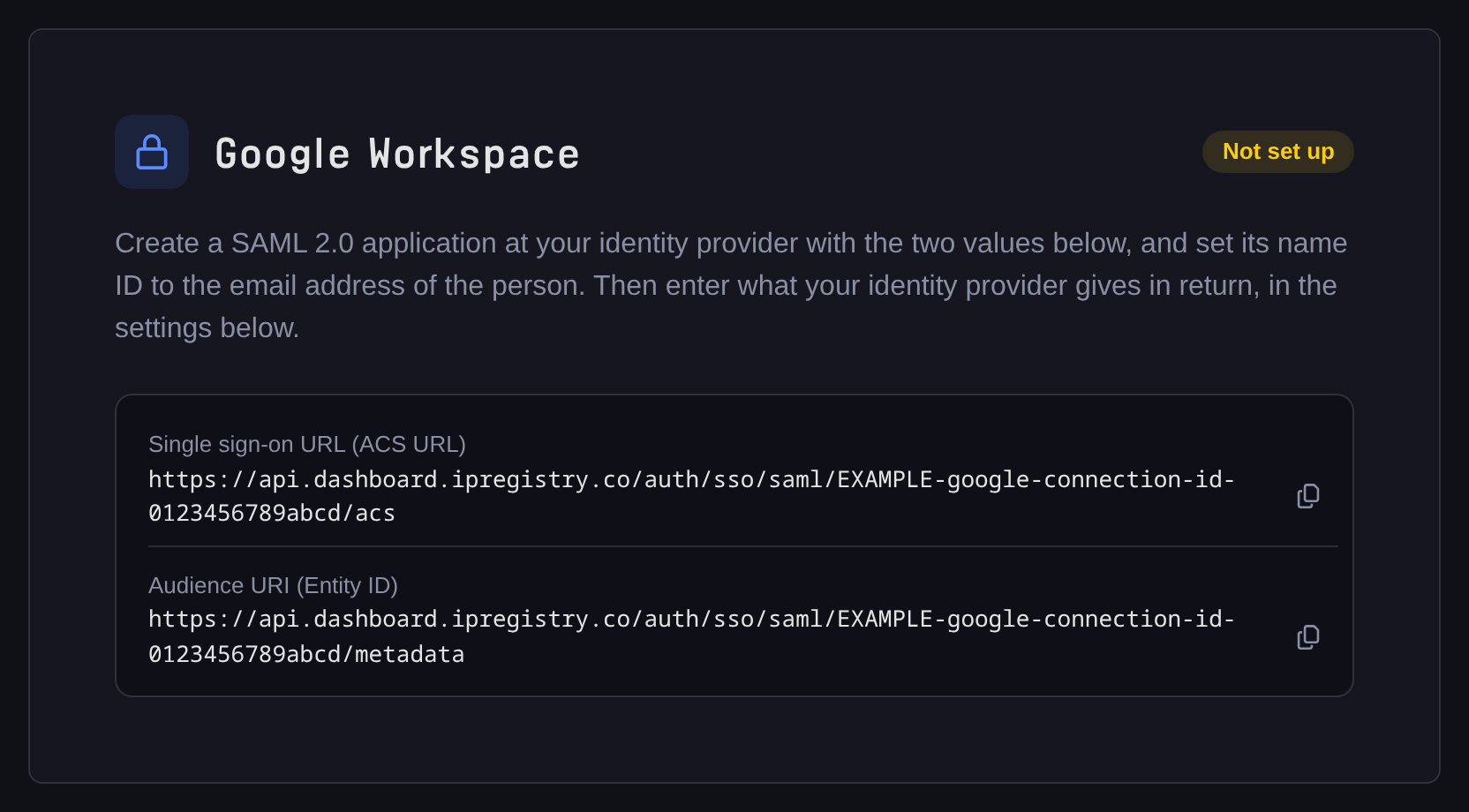
Google Workspace, pick SAML as its Type and click Create the connection. - Keep the page open: it shows the Single sign-on URL (ACS URL) and the Audience URI (Entity ID) that Google asks for.
2. Add the application in the Google Admin console
- In the Google Admin console, go to Apps, then Web and mobile apps, and add a custom SAML app.
- Give the application a name, for example
Ipregistry, and continue. - On the step that shows the details of Google as an identity provider, download the metadata. Keep the file for later and continue.
- Fill the details of the service provider:
- ACS URL: the Single sign-on URL (ACS URL) of the connection.
- Entity ID: the Audience URI (Entity ID) of the connection.
- Start URL: leave it empty.
- Name ID format:
EMAIL. - Name ID: the primary email of the person.
- Signed response: checked or not, both work.
- Optional, so that new members get their name: on the step for attributes, map the first name to an attribute named
firstNameand the last name to one namedlastName. - Finish.
3. Turn the application on for your people
A new application is off for everyone. Open its user access and turn it on for everyone, or for the organizational units or the groups who sign in to Ipregistry, yourself included. Google says such a change can take up to 24 hours, and it usually takes much less. Someone the application is not turned on for is stopped by Google with an error saying so.
4. Give Ipregistry the metadata of Google
Google gives a file, not an address:
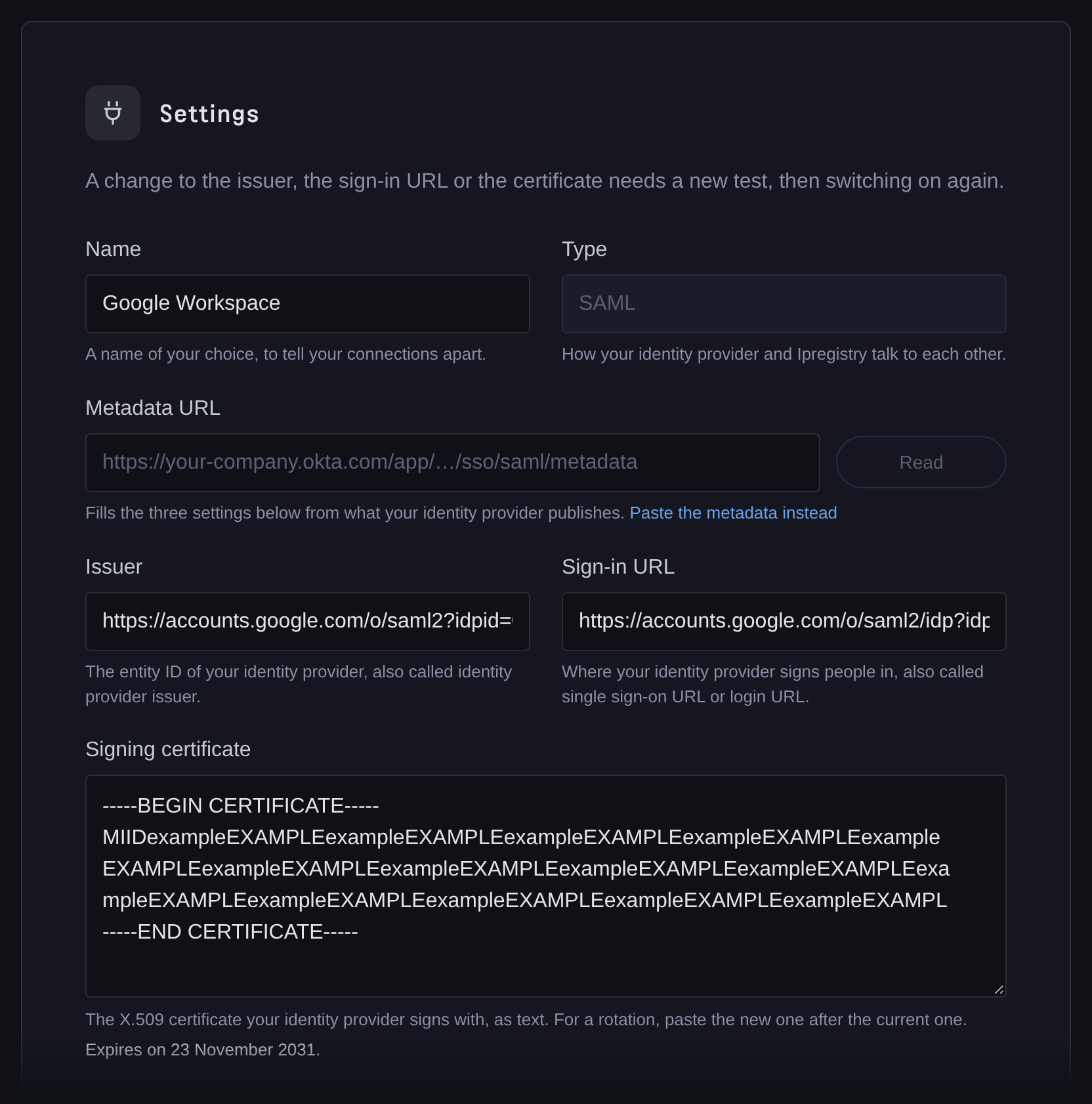
- On the page of the connection on Ipregistry, click Paste the metadata instead.
- Open the file downloaded from Google in a text editor, paste its whole content in Metadata and click Read. It fills Issuer, Sign-in URL and Signing certificate.
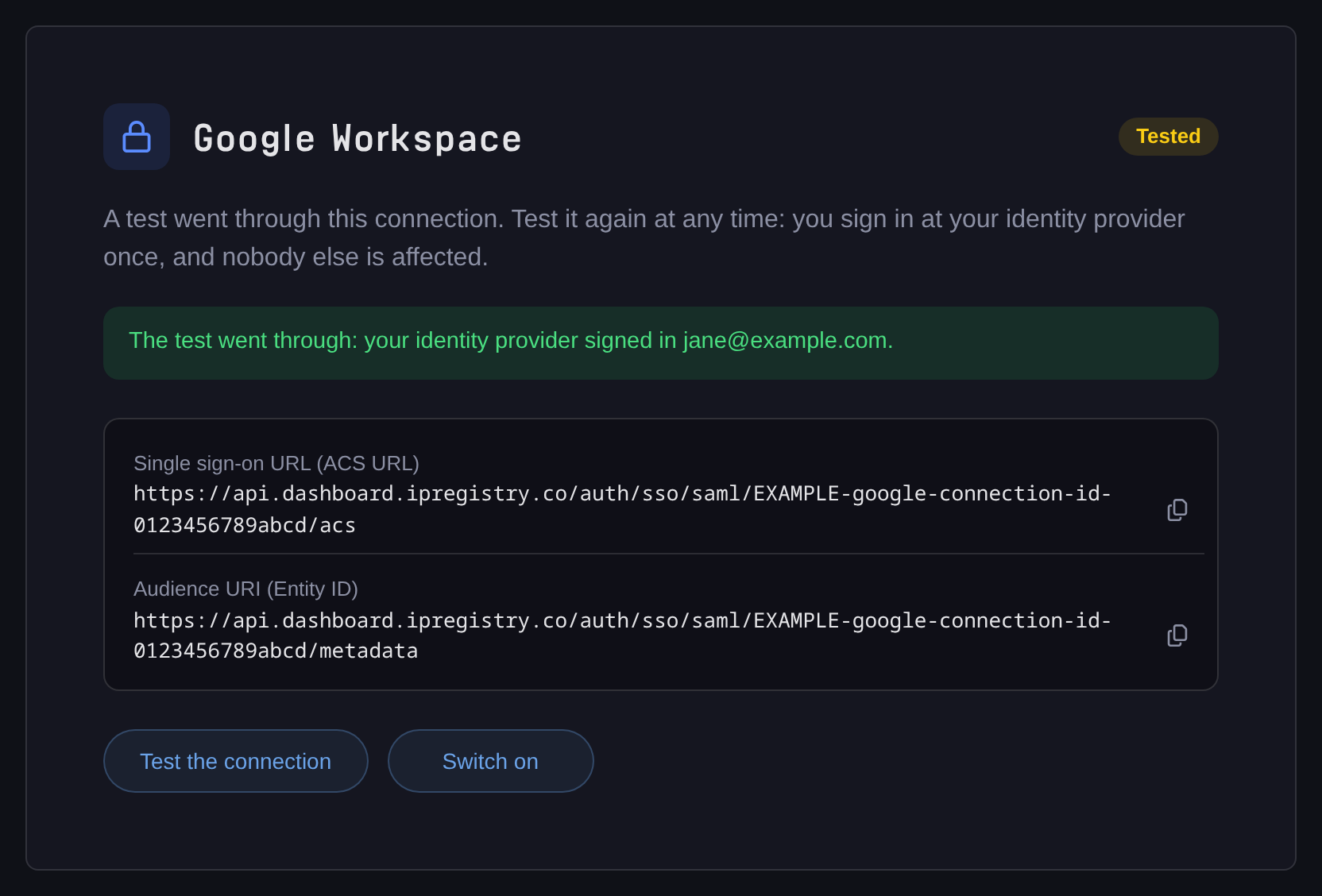
- Click Test the connection and sign in at Google.
Then carry on with the last steps.
With OpenID Connect
This way uses an OAuth client of a Google Cloud project that belongs to your Workspace organization. Who gets the application is then not decided per organizational unit in the Admin console as with SAML: every account of your Workspace organization can go through it, and who gets in is decided on Ipregistry.
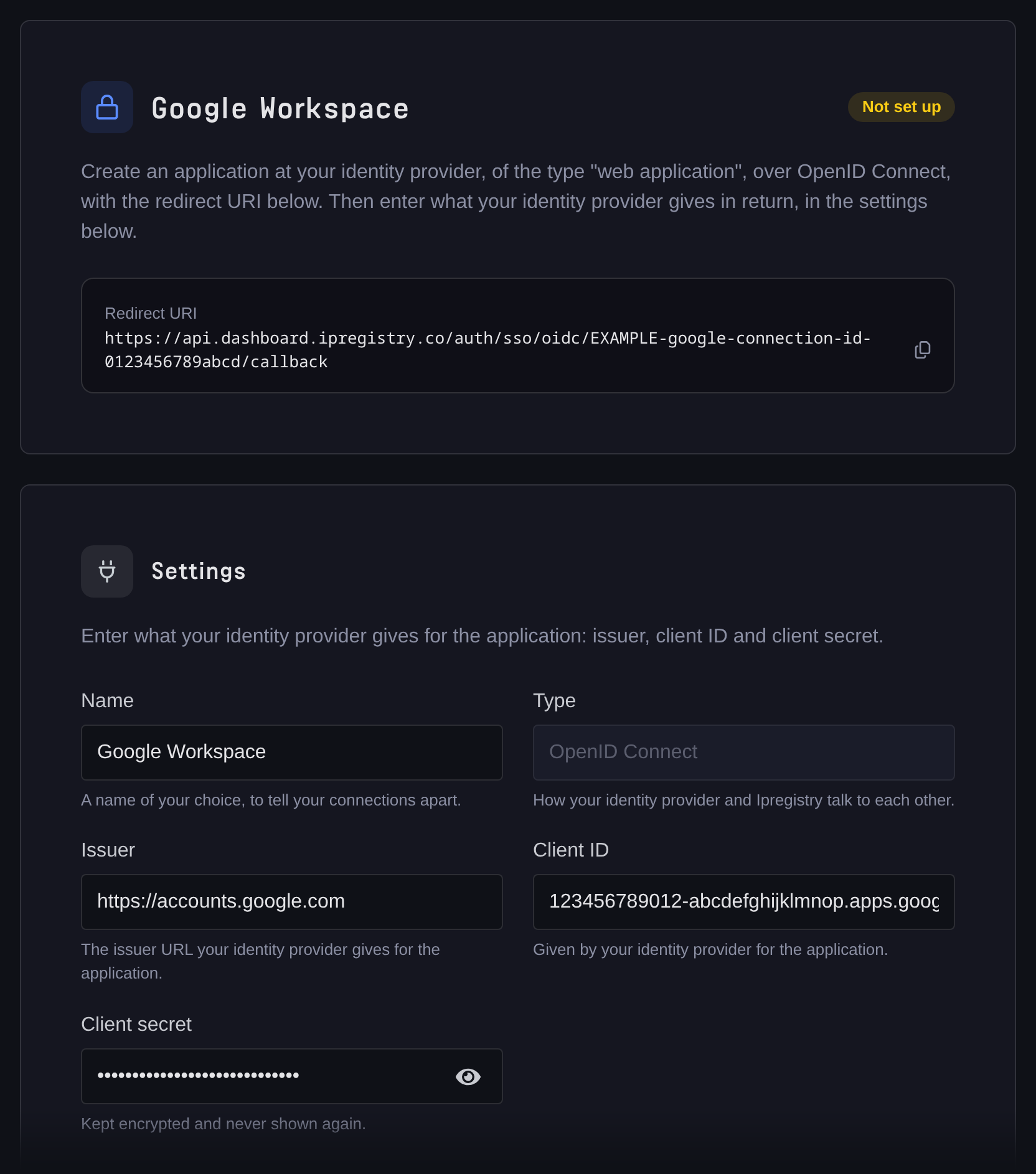
- On Ipregistry, add a connection with OpenID Connect as its Type and keep its page open: it shows the Redirect URI.
- In the Google Cloud console, pick or create a project of your organization and set up its OAuth consent screen for internal users only, so that only accounts of your Workspace organization can sign in.
- Create an OAuth client of the type web application, with the Redirect URI of the connection as its authorized redirect URI.
- Copy the client ID and the client secret Google gives.
- On the page of the connection on Ipregistry, enter:
- Issuer:
https://accounts.google.com - Client ID and Client secret: the two values copied from Google.
- Issuer:
- Click Test the connection and sign in at Google.
Last steps
- Once the test went through, click Switch on on the page of the connection.
- On the page Single Sign-On (SSO), click Add a domain, enter the domain of your work addresses and add the TXT record it gives to your DNS, then click Verify. See the DNS record.
- Click Link to a connection on the row of the domain and pick the connection.
- Decide whether the connection is a choice or the only way in, with Require this connection.
Good to know
- The address Google gives for a person must be on a domain linked with the connection on Ipregistry. Add every domain of your Workspace organization that people have their primary address on.
- Over SAML, a click on the application in the Google apps menu signs the person in to Ipregistry.
- When the certificate of the SAML application is replaced at Google, download the metadata again, paste it on the page of the connection and click Read, then test and switch on again. The page shows when the current certificate expires.
- Someone who leaves the company: suspend or delete their account at Google, or turn the application off for them. See people who leave.